Quick answer: load your image or video, choose Green or Blue, raise Tolerance only until the backdrop disappears, then use Edge softness and Spill reduction to clean the subject before exporting.
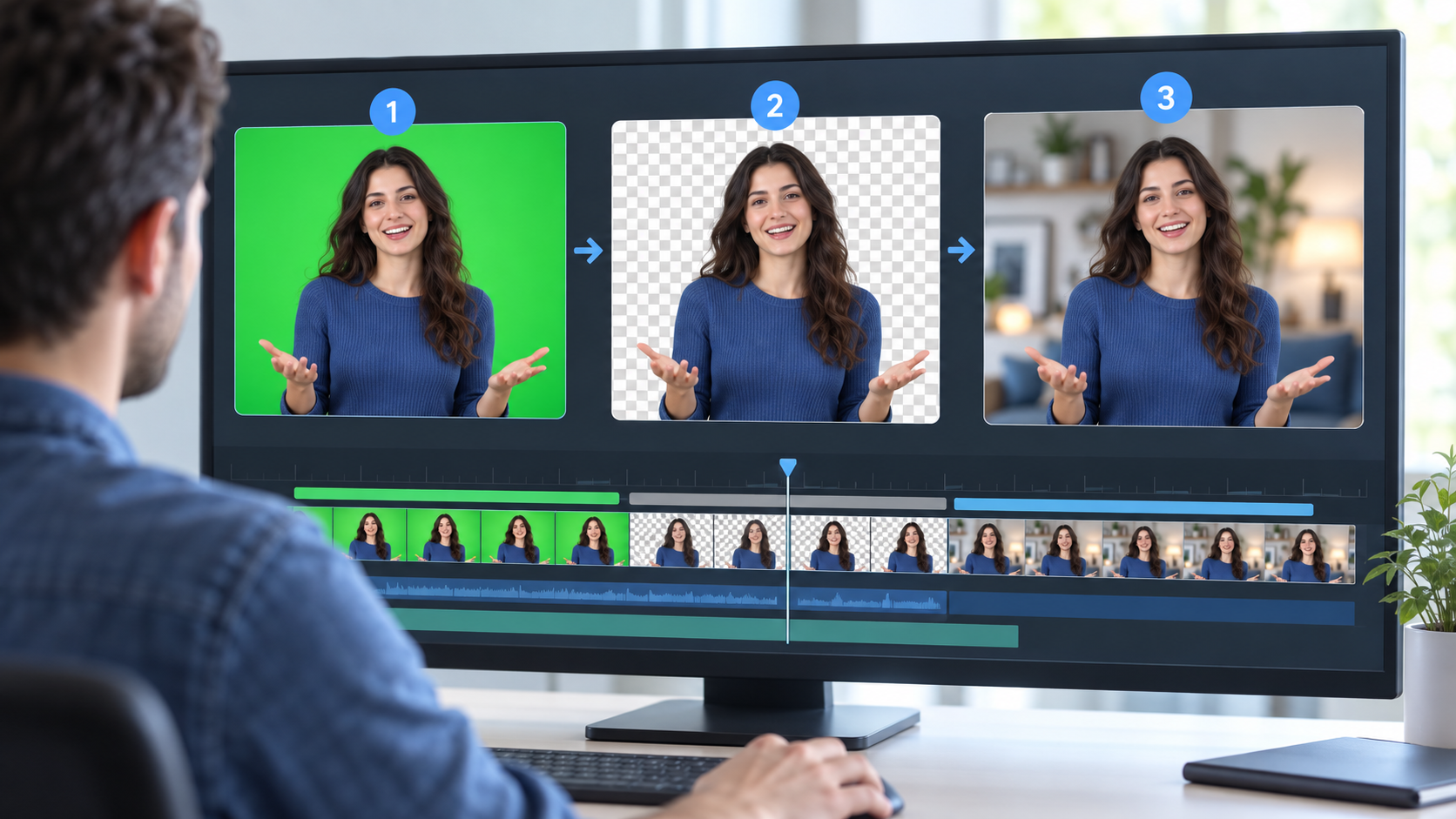
What a background editor actually changes
A color-key editor makes pixels close to the selected screen color transparent. It does not repaint the subject or understand every object in the frame. Even lighting, clear separation, and a subject that does not share the key color usually produce the cleanest result.
A dependable editing order
- Choose the screen color. Start with Green or Blue, or sample a representative area.
- Set Tolerance carefully. Increase it until the background is mostly gone, then stop before similar colors disappear.
- Soften the edge. Use a small amount to avoid a harsh cutout. Too much makes fine detail hazy.
- Reduce spill last. Judge green reflections around hair and shoulders after the mask is stable.
When to replace the background
Export a transparent PNG for a still image. For short motion work, use transparent WebM when the destination supports alpha video. PNG frames are a more inspectable fallback when a platform does not preserve WebM transparency.
Three problems that look like tool errors
Uneven green remains: sample a better color or increase Tolerance slightly. A halo surrounds the subject: try a little Spill reduction after lowering an overly aggressive Tolerance. Hair looks cut off: reduce Tolerance and Edge softness, then inspect the footage again.
Frequently asked questions
Can I use this for blue screens?
Yes. Choose Blue, or sample the actual screen color from the preview.
Does the editor upload my image or video?
No. The tool processes the file in your browser. There is no upload queue or server-side project history.
Why does a replacement background not appear automatically?
The tool creates a transparent result so you can place it over any background in your design or video editor.